
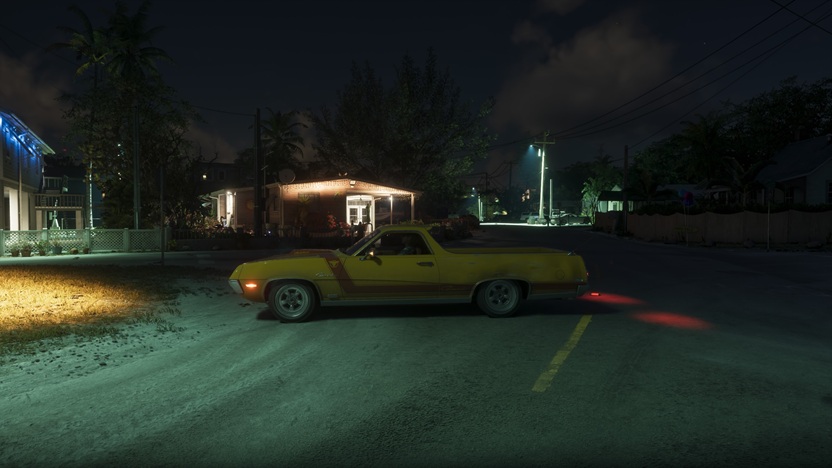
Driving has always been one of the main components of the Grand Theft Auto series. Many players simply enjoy getting behind the wheel and cruising around the open world, whether they are exploring the city, completing missions, or just looking for something to do. However, there has always been one particular feature missing from previous GTA games: the ability to manually use turn indicators and control headlights.
We have seen NPCs use indicators, also known as turn signals, in previous GTA games, but Rockstar never gave players the option to do the same. Along with gym mechanics and a more realistic police system, manually using turn indicators has been a highly requested feature among fans. Fortunately, Rockstar has finally addressed this in GTA 6, allowing players to use turn signals and control their vehicle's headlights.
This is a small addition, but it makes driving around Leonida feel considerably more realistic. Whether you want to follow traffic rules, signal before making a turn, or simply enjoy cruising around Vice City at night, these features give you more control over your vehicle. Here's how you can use turn signals and switch on your headlights in GTA 6.
How to Use Turn Signals and Headlights in GTA 6
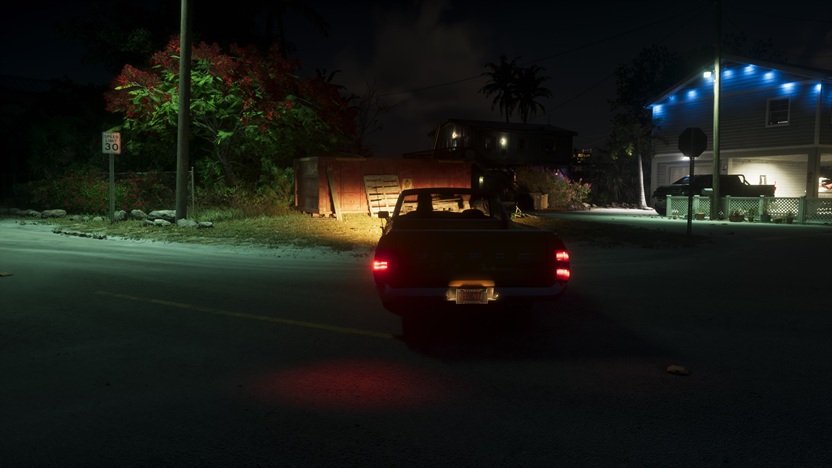
These are the controls you'll need (see our GTA 6 controls guide for the full layout):
| Action | PlayStation | Xbox |
|---|---|---|
| Turn Signal Left | Tap Left | Tap Left |
| Turn Signal Right | Tap Right | Tap Right |
| Headlights | Press Circle | Press B |
| Hazard Lights | Vehicle controls menu (see below) | |
Car indicators, also known as turn signals or blinkers, allow you to signal your intention to turn either left or right while driving. They are a relatively small addition to the game, but they make driving feel much more realistic. Since this feature was unavailable in previous GTA games, having the ability to use indicators manually makes it a particularly welcome addition in GTA 6.
Using them is also quite simple, as you do not need to open any additional menus or navigate through complicated vehicle settings. To signal a right turn, simply tap Right. Similarly, if you want to signal a left turn, tap Left.
Make sure you tap the directional button rather than holding it, as holding Left opens the vehicle controls menu. The indicators will flash on the corresponding side of your vehicle, letting other drivers know which direction you intend to take. They can also switch off automatically after completing a turn, so you do not have to worry about leaving them on unnecessarily.
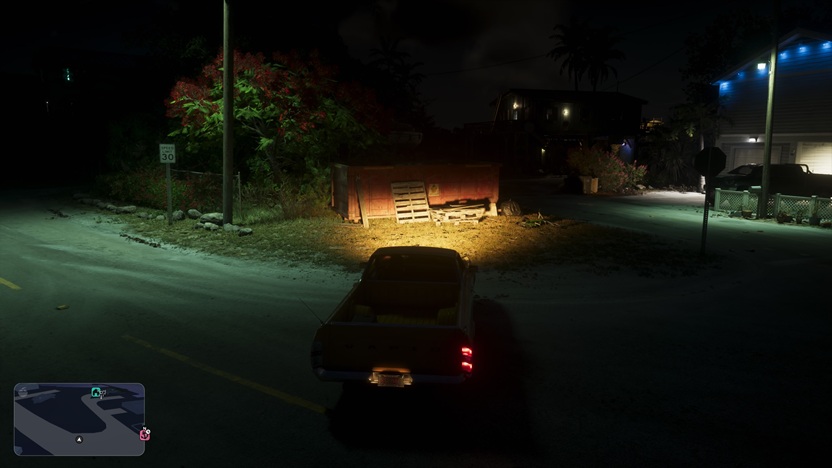
Similarly, controlling your vehicle's headlights is just as straightforward. If you are playing on PlayStation 5, simply press Circle to operate the headlights. On Xbox Series X|S, you need to press B. This gives you a quick way to control your vehicle's lighting without having to access the vehicle menu every time.
If you want more control over your headlights, you can also access the vehicle controls menu. Hold Left on the D-pad, push the Right Stick upwards to switch to the vehicle options, and navigate to the Headlights option. From there, you can select different lighting settings, including Automatic, Low Beam, High Beam, and Off.
As GTA 6 features a realistic day-and-night cycle, headlights are particularly important when driving after sunset. Unlike many other open-world games where nighttime environments remain relatively bright, darkness in GTA 6 can feel surprisingly close to real life. In areas without streetlights or other sources of illumination, you might genuinely struggle to see what is directly in front of your vehicle without switching on your headlights.
This is especially noticeable when driving on rural roads, forests, and other poorly lit areas outside Vice City. Having your headlights switched on makes it much easier to navigate these locations, while high beams can provide additional visibility when driving along particularly dark roads.
Can You Use Hazard Lights in GTA 6?
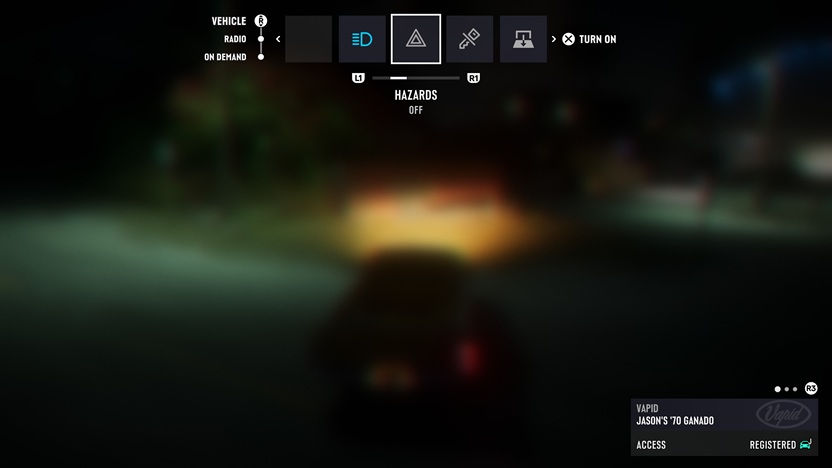
Hazard lights are another useful vehicle feature available in GTA 6. They are commonly used to warn other drivers when a vehicle has stopped, broken down, or is experiencing an issue. Unlike regular indicators, which signal either a left or right turn, hazard lights activate both sets of indicators simultaneously, making your vehicle more noticeable to surrounding traffic.
This feature is also present in GTA 6 and is a pretty solid addition for players who enjoy realistic driving. You can activate hazard lights whenever you want, whether you have pulled over to the side of the road, stopped your vehicle, or simply want to use them while exploring Leonida.
Unlike regular turn signals, however, hazard lights are accessed through the vehicle controls menu. To activate them, follow these steps:
- Get inside a vehicle.
- Hold Left to open the vehicle options menu. The radio menu will appear first.
- Push Right Stick upwards to switch from the radio options to the vehicle controls.
- Navigate through the available options until you find Hazards, using R1 or L1 on PlayStation or RB or LB on Xbox.
- Select the Hazards option and press Cross on PlayStation or A on Xbox to activate them.
Once activated, both the left and right indicators will begin flashing simultaneously. You can follow the same steps and select the option again to switch the hazard lights off.
One small thing worth mentioning is that the hazard light icon in the vehicle menu may not always update immediately, even when the lights are already active. If this happens, close the menu and check your vehicle to confirm that both sets of indicators are flashing.
Looking to achieve 100% completion? Keep track of everything with our GTA 6 100% Completion Checklist, explore the complete GTA 6 missions list, and discover all available activities and side missions. If you're just getting started, check out our guide on what to do in your first hour in GTA 6, along with tips on how to fast travel. For more walkthroughs, guides, and helpful tips, visit our main Grand Theft Auto VI hub.
or post as a guest
Be the first to comment.