
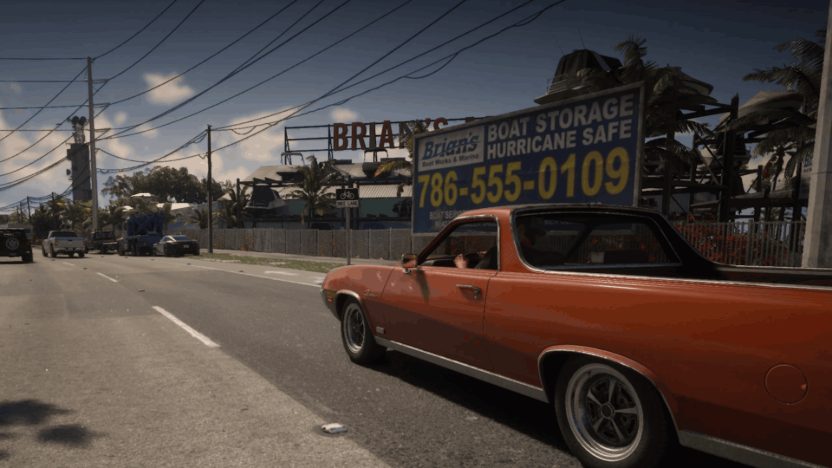
You can auto drive in GTA 6 right from the start of the game, but the game never tells you how. There are just two requirements:
- A vehicle: you need to be driving a vehicle of some kind.
- A destination on the map: auto drive only works if the game’s AI has somewhere to take you.
Don’t confuse this feature with fast travel. Auto drive is much slower, but it doesn’t need a taxi or the RydeMe app, and it’s free. From our testing, the AI drives safely but doesn’t take the best shortcuts.
Auto drive is part of the Cinematic Mode camera, which switches between camera angles you don’t directly control. That isn’t a problem here, since the AI is doing the driving.
How to Activate Auto Drive in GTA 6
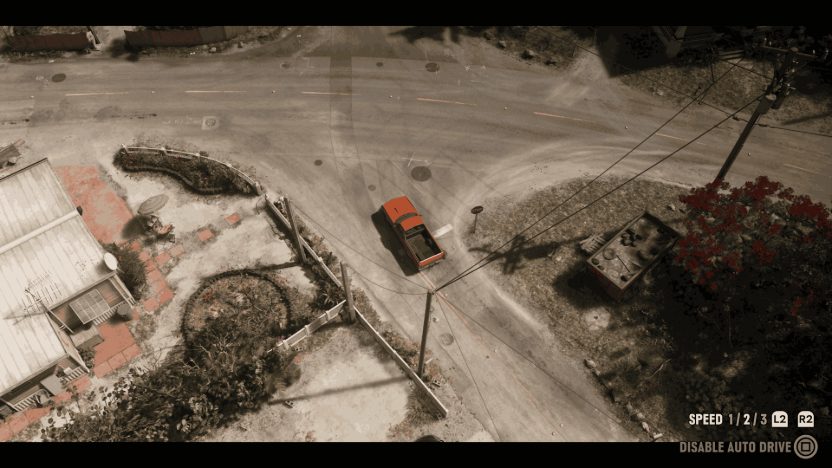
First, get into a vehicle. Then follow these steps:
- Open the map, pick a location and press X (PS5) or A (Xbox Series X|S) to set a destination.
- Make sure you’re on a road. By default, auto drive only works on public roads (see the setting below to use it anywhere).
- Hold Down on the D-pad and, while holding it, press Options (PS5) or Menu (Xbox Series X|S) to enter Cinematic Mode.
- A button prompt will appear in the bottom-right corner to enable auto drive, depending on your console and button control scheme. If it’s greyed out, drive onto a public road first.
- Your character will now drive to the spot you marked on the map by themselves.
There are three speed settings (1, 2 and 3), which you change with L2 and R2 (LT and RT on Xbox). Speed 2 is the default. Whatever speed you pick, your character follows traffic laws, so driving manually is much faster.
Still, auto drive is handy if you want to enjoy a cinematic ride through Leonida, take some screenshots, or save money compared to taking a cab while you put the controller down for a bit.
How to Use Auto Drive Off-Road
If you want auto drive to work away from paved roads, pause the game, go to Settings > Gameplay, and set Auto Drive to Unrestricted. The AI will then take you almost anywhere, although it’s still at its best on roads.
How to Exit Auto Drive in GTA 6
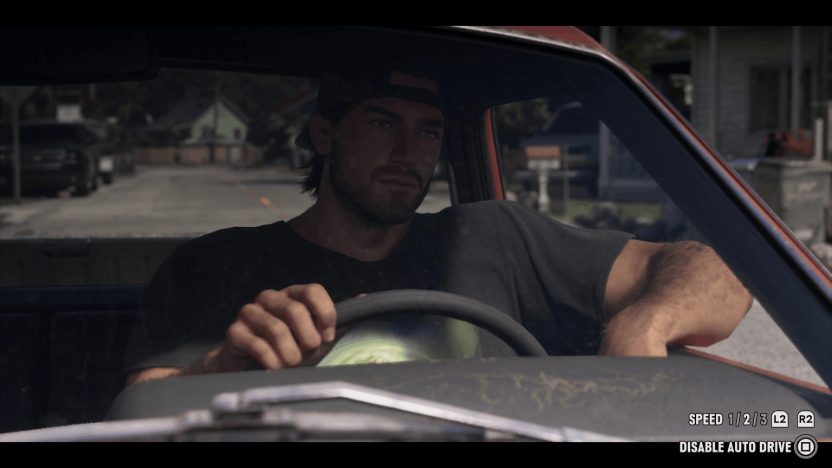
To take back control of your vehicle, hold the same button that you previously held to enable auto drive to disable it, as shown in the bottom-right corner of the screen. Other buttons may also work but can have side effects, like jumping out of your vehicle. Either way, you get manual control back in a second, and you can turn auto drive back on just as quickly.
We don’t recommend auto drive when you’re in a dangerous situation, like a police chase, or when you’re exploring areas without proper roads.
What do you think of auto drive in GTA 6? Have you taken any good screenshots while cruising around Leonida? Let us know in the comments, and check out our GTA 6 controls guide, the GTA 6 interactive map to plan your next trip, and more GTA 6 guides.
or post as a guest
Be the first to comment.